¶ FOLIO Loan Rules
Notes to Reader:
- Please don't casually edit, add, or delete your Loan Rules without consulting with your colleagues and/or the MOBIUS Help Desk.
- FOLIO Loan Rules can be copied and pasted into a Text Editor so if you need to revert back to what you had previously (mistakes and regrets do indeed, happen), you can do that quite easily.
- Local Loan Rules are determined at the individual Library level, so each library may define their tenant accordingly.
- OpenRS Loan Rules (which are similar for every library across MOBIUS) are replicated in each individual library tenant, so please do not edit or delete these since changes to how OpenRS works is done with the approval of the MOBIUS Board of Directors for the benefit of the entire membership.
Loan rules in FOLIO are under Apps/Settings/Circulation and then under General and Circulation Rules.
Rules are structured with the criteria first, then a colon, then the policies.
The criteria determine what matches the item to be checked out, the policies determine how long it is checked and the notice, request, and fine and overdue policies:
g undergraduate-student + s TRAIN-RSV-1stFl : l 2-hours-no-renew r holds-pages-and-recalls n notices o no-fines i 48-hour-actual-cost
g undergraduate-student + s TRAIN-RSV-1stFl Is the criteria used to select an item.
- l 2-hours-no-renew r holds-pages-and-recalls n notices o no-fines i 48-hour-actual-cost Is the collection of policies an item checks out under.
Together, the two parts make the loan rule.
¶ Criteria
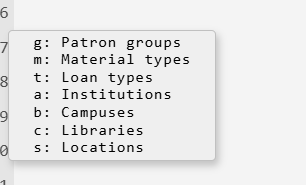
The criteria highlight in colors when correctly added. The available ones are:
gPatron group (blue)mItem material type (brown)titem loan type (green)aitem institution (green)bitem campus (green)citem library (orange)sitem location (green)
There can be one class of criteria or multiple. Each one needs to have at least one entry:
- g undergrad
Multiple criteria are linked by a “+” symbol:
- g undergrad + t one-hour + m book
Patrons, material types, and locations can have multiple entries:
- g undergrad staff + m book oversize
FOLIO looks for a match of one each, so these four would match:
- Undergrad checking out a book
- Undergrad checking out an oversize item
- Staff checking out a book
- Staff checking out an oversize item
¶ All criteria and disallow
Criteria can have all entries selected such as:
- g all
For all patron groups. Similarly, a “!” negates an entry such as :
- m !reserve
For all material types except reserve. You can mix negated and allowed criteria such as:
- m !audiobook + m audio-cd
Disallows audiobooks but allows audio CD's
- g !undergraduate-student !graduate-student
Disallows allows undergrad and grad students but allows others as they are not explicitly denied.
- g !undergraduate-student + g faculty-staff
Allows faculty and staff but disallows undergrads. (These can be useful in some circumstances but in most cases leaving out an element is more practical.)
¶ Policies - The Same Five Elements
Loan Policies always need the same five elements:
- l Loan policy (how long an item checks out)
- r Request policy (If an item can be request and have holds placed)
- n Notice policy (what notices a patron receives and what schedule they are on)
- o Overdue fine policy (How much a patron is fined for overdue items and on what schedule)
- i Lost item policy (How much and when a patron is charged for lost items)
All will be colored purple when correct, and if they are correct, they will not need a “+” between each element:
- l 14-days-no-renew r holds-pages-and-recalls n 1-2-4-day o 10-per-day i 7-day-actual-cost
If you have a circumstance where a patron isn't charged fees, fines, or receiving notices, the policy still needs to be present but will need to use a policy set for no action:
- l 28-days-w-renew r holds-pages-and-recalls n no-notices o no-fines i no-fines
¶ Priority Listing, Fallback Policy, and Comments
Criteria have a default priority listing: priority: t, s, c, b, a, m, g
This means that if there are otherwise identical loan rules that could match, it selects the criteria that matches first. For example t (loan type) is listed before (s) shelving location. If there are two loan rules, one for the stacks location, and one for the loan type of “can circulate,” it will look at the loan type rule first, then go to stacks if no match.
Each table will have a Fallback Policy, what to do if there is no match found. This is almost always a noncirculating policy:
- fallback-policy: l noncirculating r holds-pages-and-recalls n no-notices o no-fines i no-fees
Notice, overdue and fine policies can be added for circumstances where a checkout is overridden, but in typical use would be left as is.
Entering a # or / at the start of a line turns it into a comment. This is useful and encouraged for notes and stating what a loan rule is expected to do:
- #Special Collections checkout for Alumni
- g alumni + s TRAIN-SC : l 28-days-no-renew r holds-pages-and-recalls n 24-48-72-hour o no-fines i 48-hour-actual-cost
¶ Nesting
Most rules are entered as one set of criteria.
Nesting can allow one set of criteria to match multiple possible policies, based upon a first line and then indented lines beneath it. For example:
s NewBooks + t can-circulate
g staff : l 28 day r holds-pages-and-recalls n 10 day notices o no-fines i staff billing
g faculty : l semester r holds-and-pages n semester notices o no-fines i faculty billing
A book that is in the NewBooks shelving location with a loan type of “can circulate” will check out to staff for 28 days with their billing cycle, and faculty for a semester with a separate billing cycle
Nesting can make a more compact loan table but is also harder to diagnose if there are issues. Both nested and single line entries can be in the same table, it's a library's preference if they want to use them.
¶ Saving and editing loan rules
By clicking at the top, holding the mouse button and dragging down, the entire table can be selected and the copied with Control + C and saved as text file as a backup.
Rules are edited similar to a text file, by selecting a single letter representing a class of criteria or policy, and then a menu of available options to select to select.
In this example “g" is selected to bring up a list of patrons:
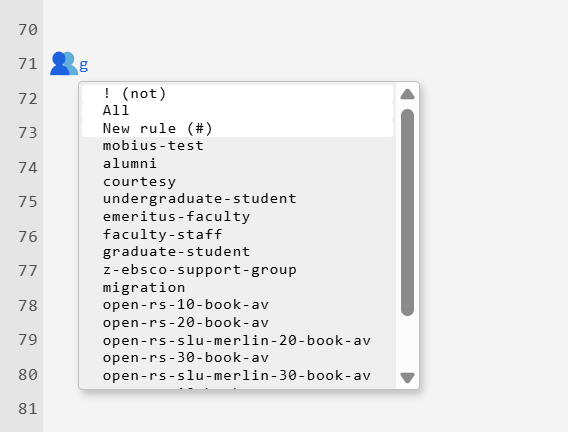
When adding new criteria the menu will require selecting from a list of options, selecting one and then another. In this example:
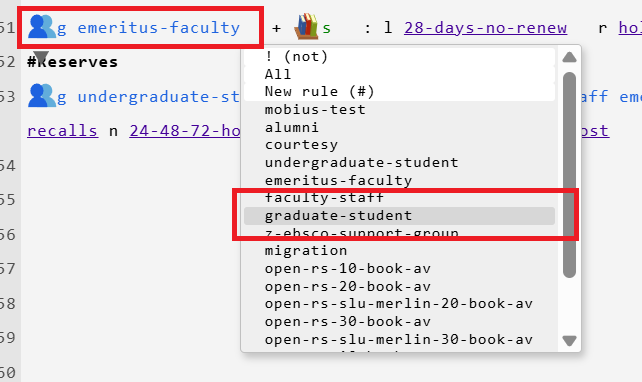
Emeritus faculty has been added and graduate student is about to be selected. Locations require doing through the Institution, campus, and library. From there one or more can be selected.
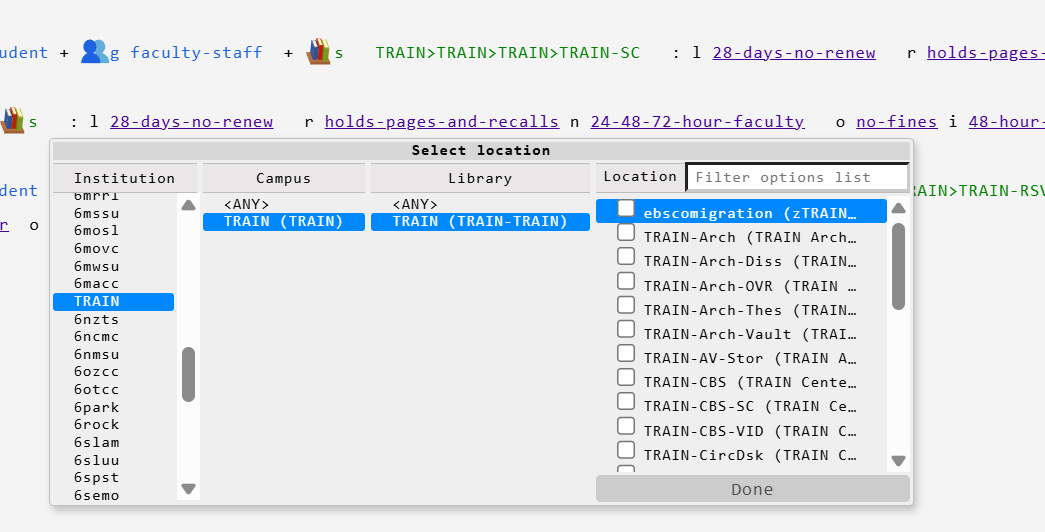
Values can also be manually typed in if known, and will highlight in color when valid.
If FOLIO detects an error it will highlight in red and indicate where it sees the problem:

In this case a “+” is present after the shelving location but no additional criteria.
Black text means an error or issue:

Here a patron group was deleted at some point, and the UUID is showing. While not harming the table, it should be deleted.
In this example:

The “music cd” material type was manually typed in and is missing the “-” to be valid, whole the loan type does not have a space between the criteria and entry.
If all is good a green message appears:

¶ Troubleshooting
If an item is showing as non-circulating but it is still checking out, or it is checking out under the wrong loan rule, please note the following:
- Item material type
- Item effective location
- Item loan type
- Patron group
From the tope of the table down check to see where all would match, or if only a few matches, where the others are not excluded. If you find where the issue is, a new rule can be created or an existing one updated. In the case of multiple matches the rules that are incorrect would need to be edited. If all looks correct the problem may not be in the loan rule table.
For help please contact the MOBIUS office.
¶ Tips & Tricks
- Use notes with the # or / entries to keep track of what your table does.
- Avoid just adding a new rule anytime you need a change, see where it fits in.
- Keep things simple but avoid overly broad rules--such as all material types checking out under one rule.
- Loan types MUST be accounted for in the loan rules. Changing or adding an entry by itself won't affect how something checks out.