¶ Using Data Export to cross-check Instances without Items
¶ Step 1: Finding local Instance records without attached Holdings/Items
1. Log into FOLIO and enter the Inventory app
2. Click the search drop-drown and click on Query search
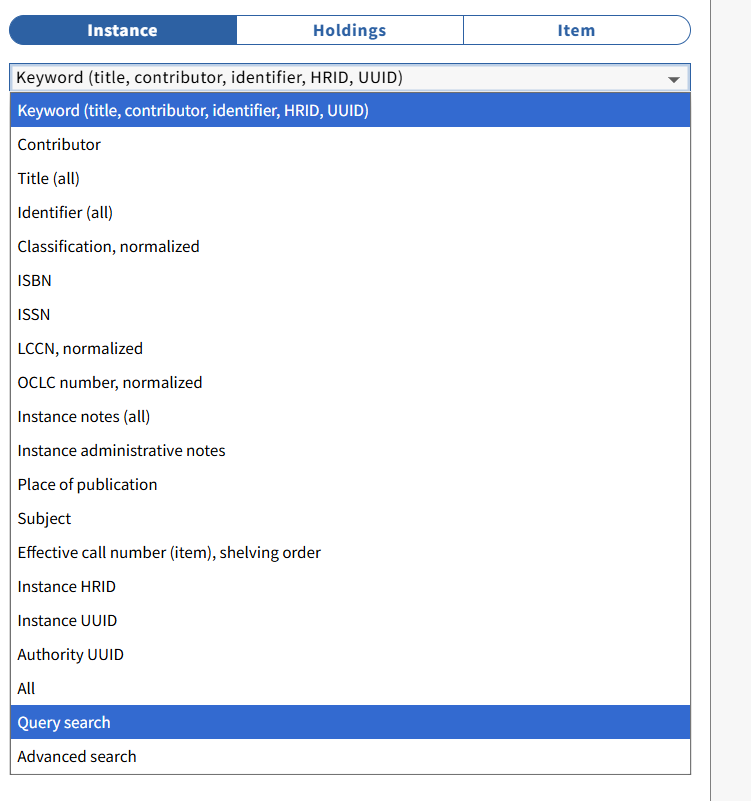
3. Type in the following query in the search box (don’t include the “[ ]” characters) :
hrid=="[tenant]in*" not holdings.id=="*"
where [tenant] is your library’s record prefix (e.g. truman)
4. Click Search
5. Use the Suppress from discovery filter to limit your search results to suppressed (Yes) or not suppressed (No)

Step 2: Output a CSV file of Instance UUIDs
1. Click Actions, then Save Instances UUIDs
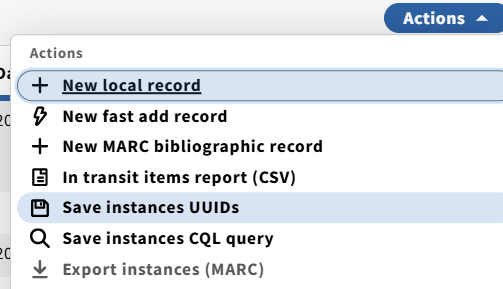
2. Note the location of the file that you downloaded.
¶ Step 3: Use a custom FOLIO Export Table to output Instance/Holdings/Item HRID numbers
1. Enter the Data Export app
2. Click on or choose file
3. Find and select the csv file of UUIDs you downloaded in the previous step
4. Click on Output Instance/Holdings/Item HRIDs. If you do not see this profile in the list of export profiles, you have two options:
a. Exit FOLIO and open a ticket with the MCO Help Desk (help@mobiusconsortium.org) to have this export table created for you;
b. Create the export table yourself (instructions at the end of this document)
5. Click on the drop-down for UUIDs provided for this export and select Instances
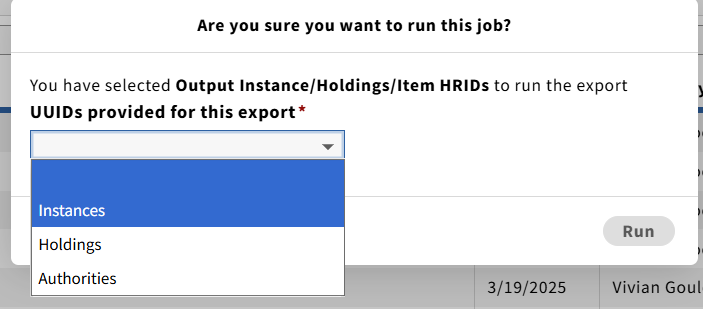
6. Click on Run
7. You will see a progress box while the job is running, which will disappear when the job is done
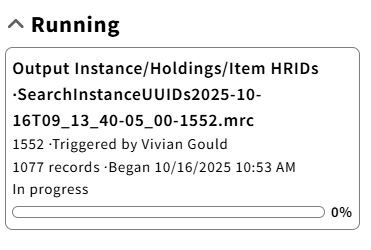
8. Click the link for the completed job to download a MARC file of the records

¶ Step 4: Use MarcEdit to determine whether the Instance records have attached Holdings
1. Open MarcEdit
2. Click on MARC Tools

3. Enter the pathway for the MARC file you downloaded in the previous step (use the folder icon to find your file without typing)
4. Copy and paste the pathway into the Save As field
5. Change the extension in the Save As field from “.mrc” to “.mrk”
6. Click Execute
7. Click Edit Records
8. What you’re going to see is a list of very brief records. What you want to see are records that look like this:
=LDR 00058nam a2200037 a 4500
=001 trumanin00000045176
This indicates that the Instance record (HRID = trumanin00000045176) does not have any attached Holdings or Item records.
What you don’t want to see, but what you need to check for, are records that look like this:
=LDR 00214nam a2200061 a 4500
=001 mobiusin00004202459
=040 \\$atrumanho00000695180$btrumanit00000822231$3trumanho00000695180
=040 \\$atrumanho00000695180$btrumanit00000822232$3trumanho00000695180
This indicates that the Instance record has attached Holdings (040 $a) and Item (040 $b) records.
9. To check to see whether your file contains records with attached Holdings or Item records, click Edit, then Find (or CTRL + f)
a. Type =040 (without the quotes) in the Find what field
b. Click Find All
c. The search results window will pop up with your search results. To jump to a record in the file, click on the line for the record, then click Jump to Record
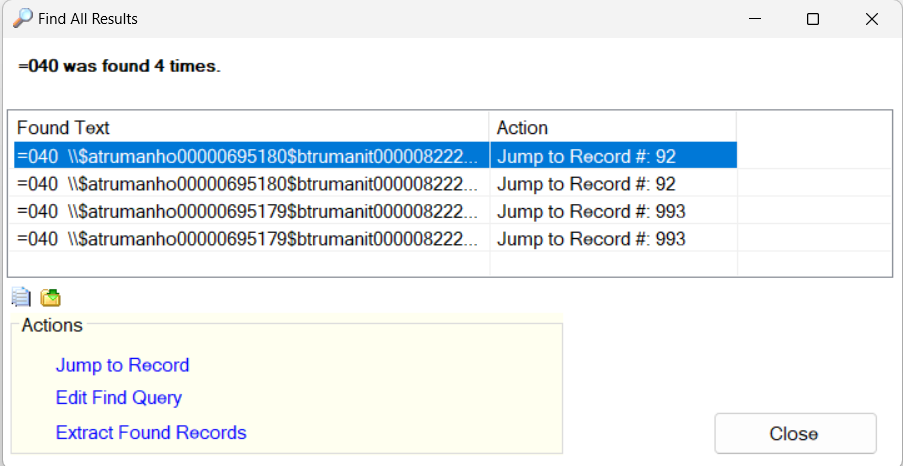
10. If your search results in 040 fields being found, proceed to Step 5. Otherwise skip to Step 6.
¶ Step 5: Use MarcEdit to separate Instances with Holdings from Instances without
1. Exit MarcEditor
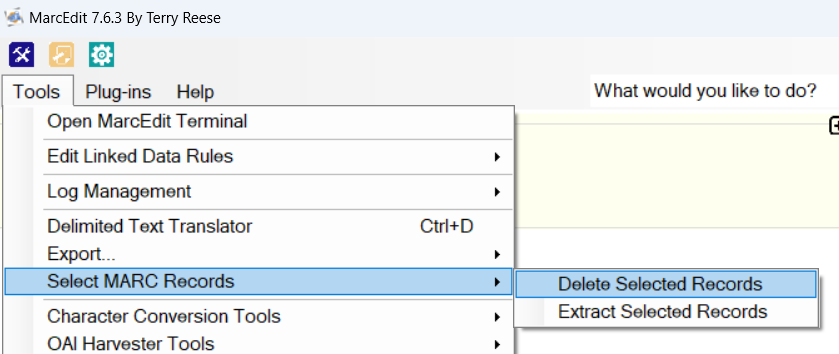
2. Click Tools, then Select MARC Records, then Delete Selected Records:
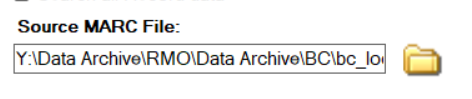
3. In the Source MARC File field, use the folder icon to locate and select the MARC file you downloaded from FOLIO:
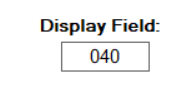
4. Change the Display Field value to 040:
5. Click the drop-down for Search, select Field:
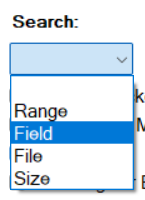
6. In the Search field, enter 040 so that the Search field reads F#:040

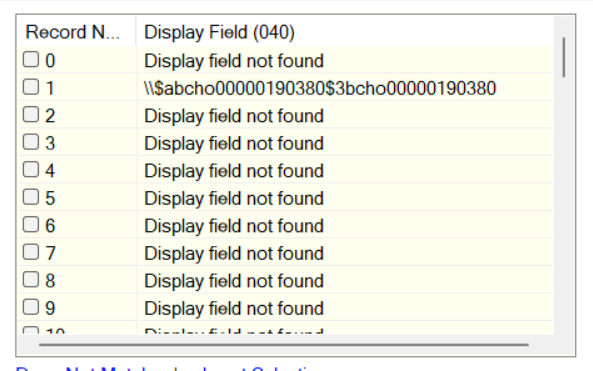
7. Click Import File. You will get a list that looks something like this:
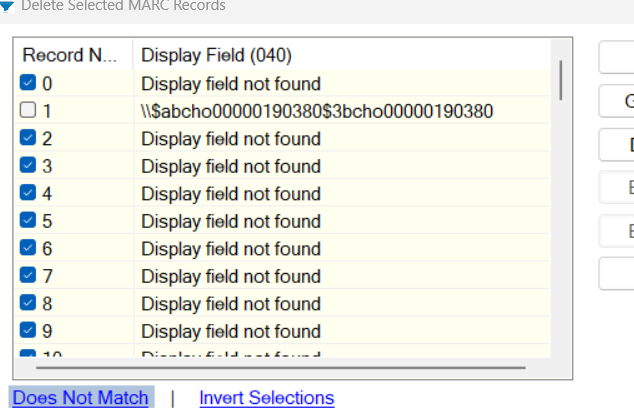
8. Click Does Not Match, then OK:
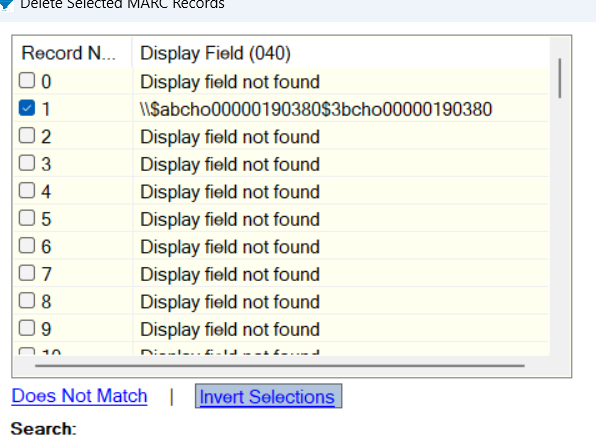
9. Click Invert Selections; scroll to confirm that the lines containing field data are selected:
10. Click Delete Selected
11. Save the modified .mrk file
12. Click Exit
13. Click on MARC Tools
14. For Select Operation, click drop-down and select MarkMaker
15. In the Open… field, locate and select the file you created in 11
16. Copy the file pathway and file name to Save As…, change the file extenstion to .mrc
17. Click Execute
¶ Step 6: Use MarcEdit to create a CSV file of Instance HRIDs
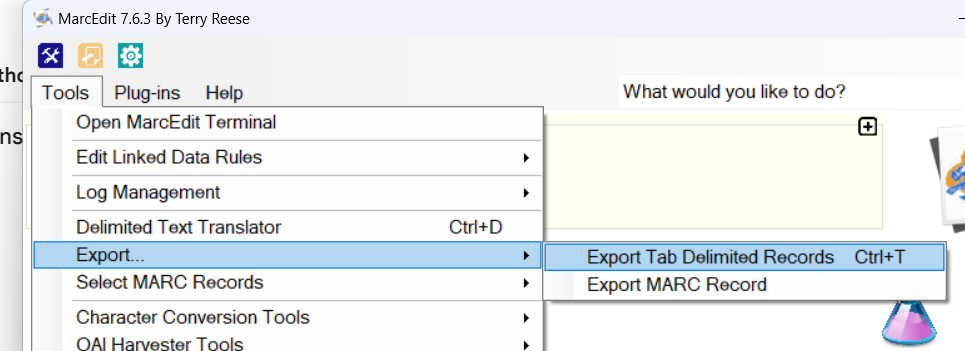
1. In MarcEdit, Click on Tools, then Export, then Export Tab Delimited Records
2. Open the .mrc file downloaded in Step 4 (or created in Step 5)
3. Copy the file pathway to the Save as field. Change the file extension to .tsv
4. Click Next
5. In the Field field, enter 001
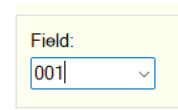
6. Click on Add Field
7. Click on Export
8. Click on OK
9. Click on Close
10. Exit MarcEdit
¶ Step 7: Use Excel to convert the TSV to a CSV
1. Open Excel
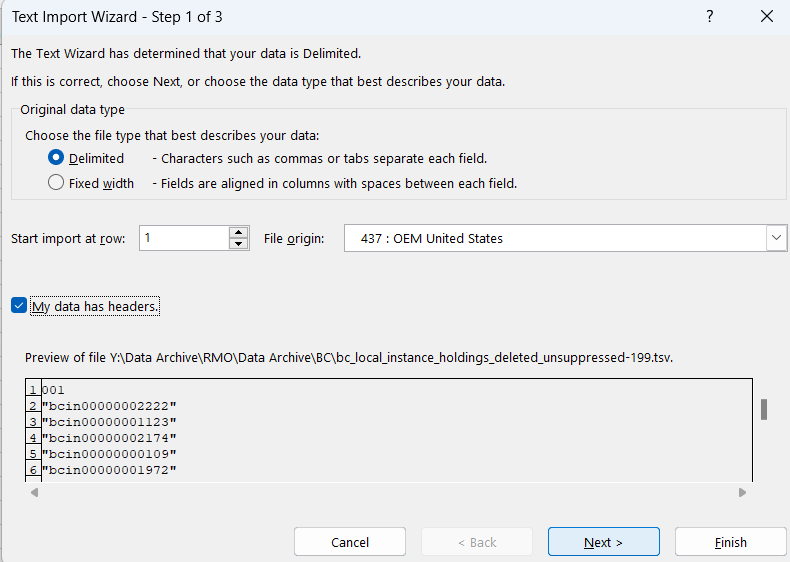
2. Open the .tsv file created in Step 6
3. Confirm the Data Type is set to Delimited, check the box for My data has headers, and click Next
4. Confirm that box for Tab is checked and click Finish
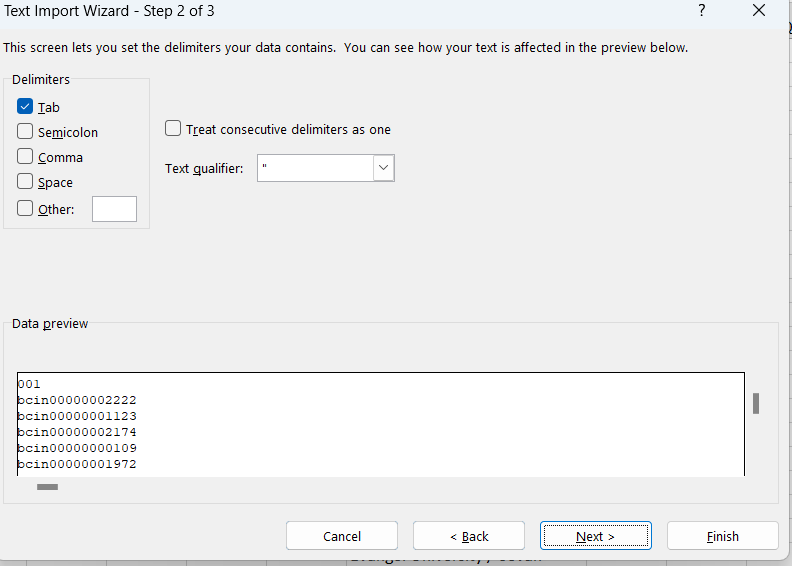
5. Delete Row 1
6. Click File, then Save As
7. Click the drop-down for Save as type and select CSV (Comma delimited) (*.csv)
8. Name and save the file
9. You may get a prompt asking if you want to keep using the format. Click Yes.
10. Exit Excel
¶ Step 8: Use FOLIO Bulk Edit to suppress local Instance records with no holdings
1. In FOLIO, enter the Bulk Edit app
2. Click on Inventory – instances
3. Click the drop-down for Record identifier and select Instance HRIDs
4. Click on or choose file
5. Select the file you created in Step 7 and click Open
6. Click Actions, then Instances and Administrative data
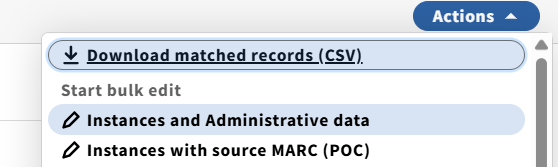
7. Under Options, select Suppress from discovery
8. Under Actions, select Set true
9. Click on Confirm changes
10. Click on Commit changes
¶ Appendix: Create a custom Export Table to output Instance/Holdings/Item HRIDs
1. Click on Apps, then Settings
2. Click on Data export
3. Click on Field mapping profiles
4. Click on New
5. Type Output Instance/Holdings/Item HRIDs in the Name field
6. Confirm that the Output format value is MARC
7. Check boxes next to Inventory instance (selected fields), Holdings, and Item
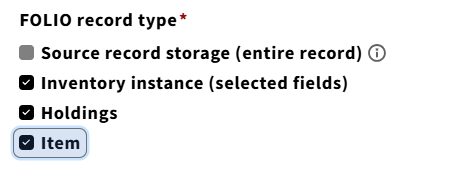
8. Click on Add transformations
9. In the Search and filter box, type hrid and hit Enter
10. Check the boxes next the three fields and enter the following information
- Holdings – HRID: Field =
040; Subfield =a - Instance – HRID: Field =
001 - Item – HRID: Field =
040; Subfield =b
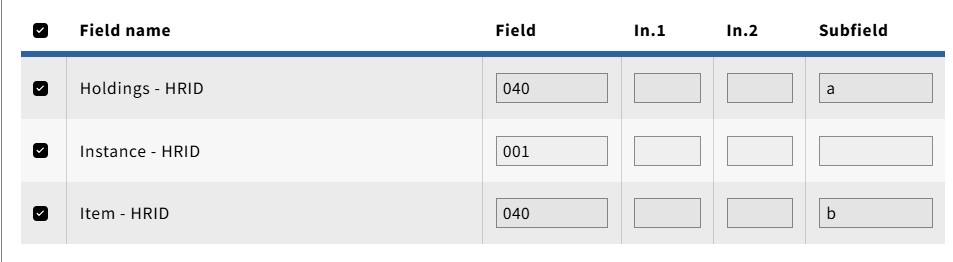
11. Click Save & close
12. Click Save & close (yes, a second time)
13. Click on Job profiles
14. Click on New
15. Type Output Instance/Holdings/Item HRIDs in the Name field
16. Click on the drop-down for Mapping profile and select Output Instance/Holdings/Item HRIDs
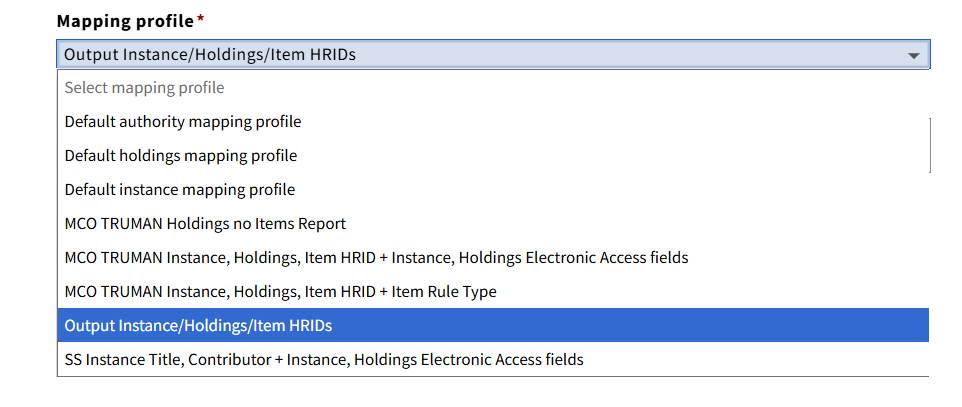
17. Click Save & close