¶ Creating SRS MARC Records in FOLIO
¶ Library of Congress MARC Format (MARC Rules)
When creating MARC records, Library of Congress’s MARC 21 Format for Bibliographic Data (MARC Rules) is a crucial resource. The MARC Rules can be found at https://www.loc.gov/marc/bibliographic/.
¶ Creating/Editing Records in quickMARC
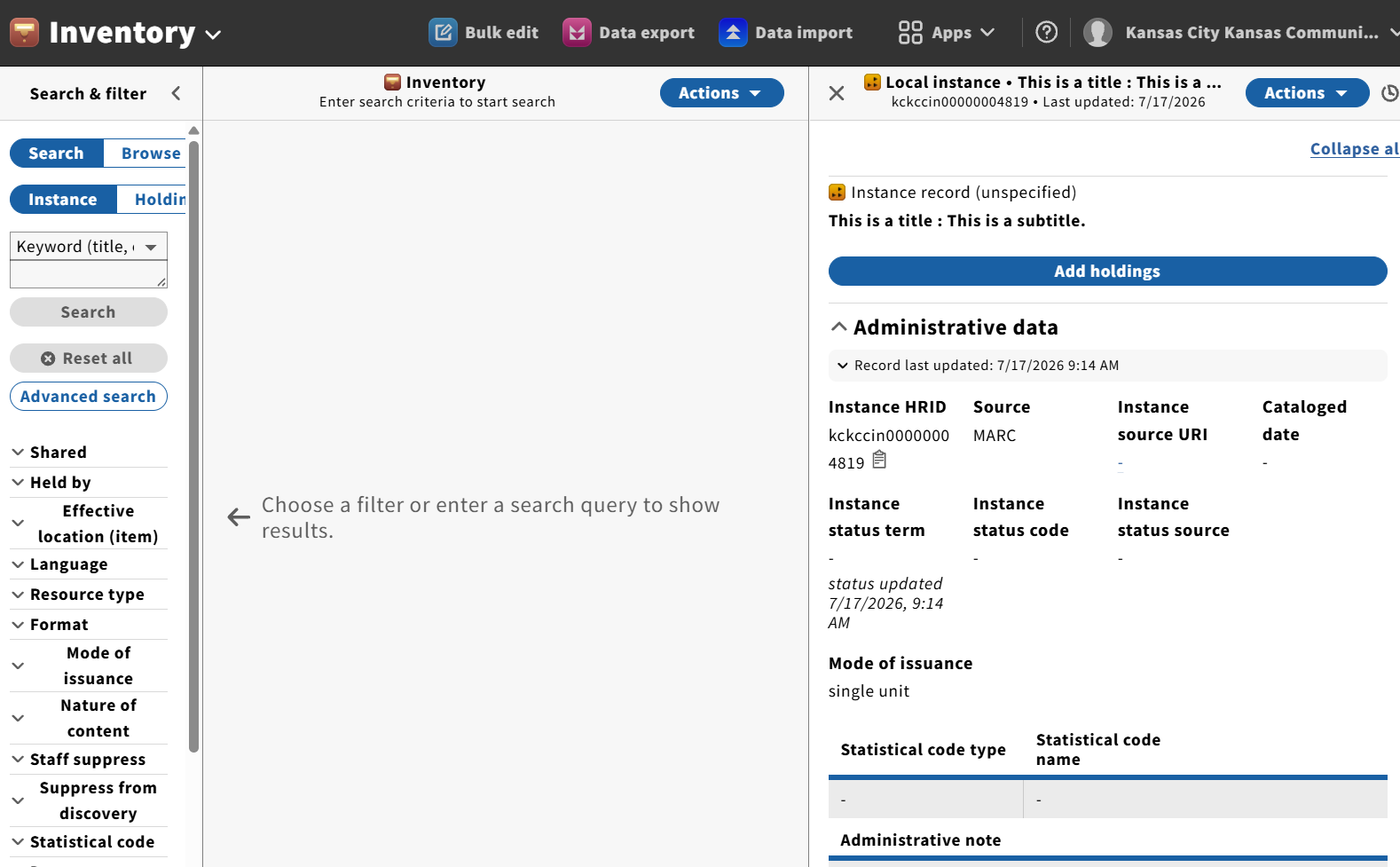
MARC records are created in FOLIO using the quickMARC app, which is accessed via the Inventory app.
- Log into FOLIO and click on Inventory (or Apps > Inventory)
- Click on Actions, then New MARC bibliographic record
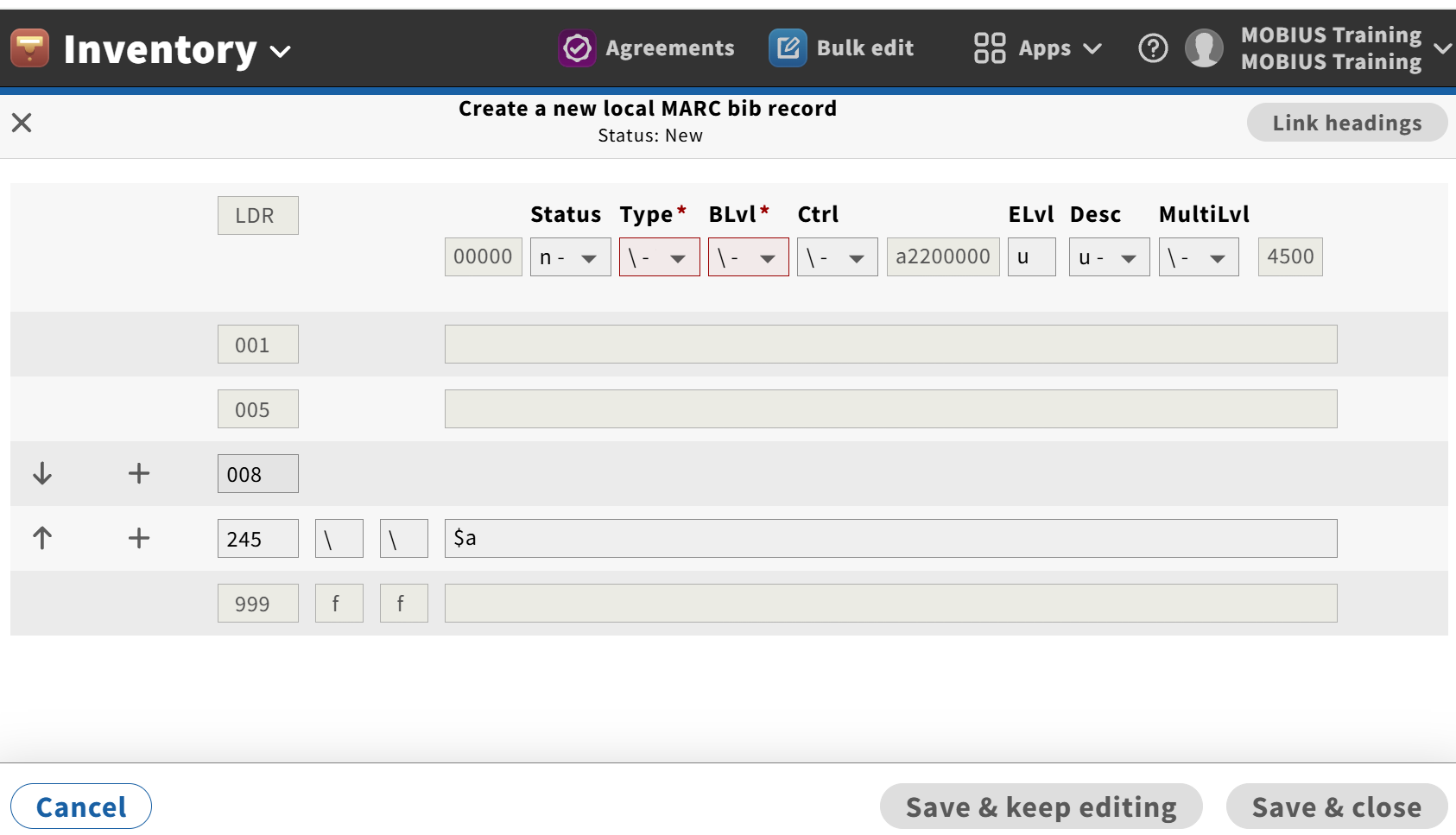
- FOLIO will then display the quickMarc record creation screen
¶ Leader (LDR) Line

Consult the MARC Rules for proper formatting of the Leader (LDR) line. Leader fields are read in the MARC Rules as character positions. Note that the following Leader fields/character positions are not editable when creating a new MARC record:
- Record length (positions 0-4)
- Character coding scheme (position 9)
- Indicator count (position 10)
- Subfield code count (position 11)
- Base address of data (positions 12-16)
- Length of the length-of-field portion (position 20)
- Length of the starting-character-position portion (position 21)
- Length of the implementation0defined portion (position 22)
- Undefined (position 23)
In order to the save the record, the following fields will need to be changed from their default value:
- Type (Type of record; default value
\) - Blvl (Bibliographic level; default value
\)
Consult with the MARC Rules to determine the appropriate values for these fields.
¶ Uneditable Fields
The following fields cannot be edited when creating a new MARC record.
- 001: FOLIO Instance HRID (this will be applied when the record is saved)
- 005: Date and Time of Latest Transaction (i.e., the date/time the record was last updated)
- 999: SRS, Instance, Holdings and Item UUIDs (these will be applied when the record(s) are created and saved)
¶ 008 Field
The fields that appear in the 008 are dependent on the values selected in the Leader Type and BLvl fields. Consult with the MARC Rules to determine the appropriate values for these fields.
¶ Creating New Variable Length Fields
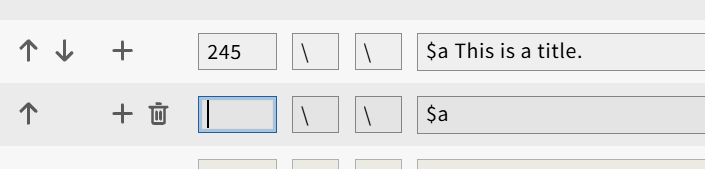
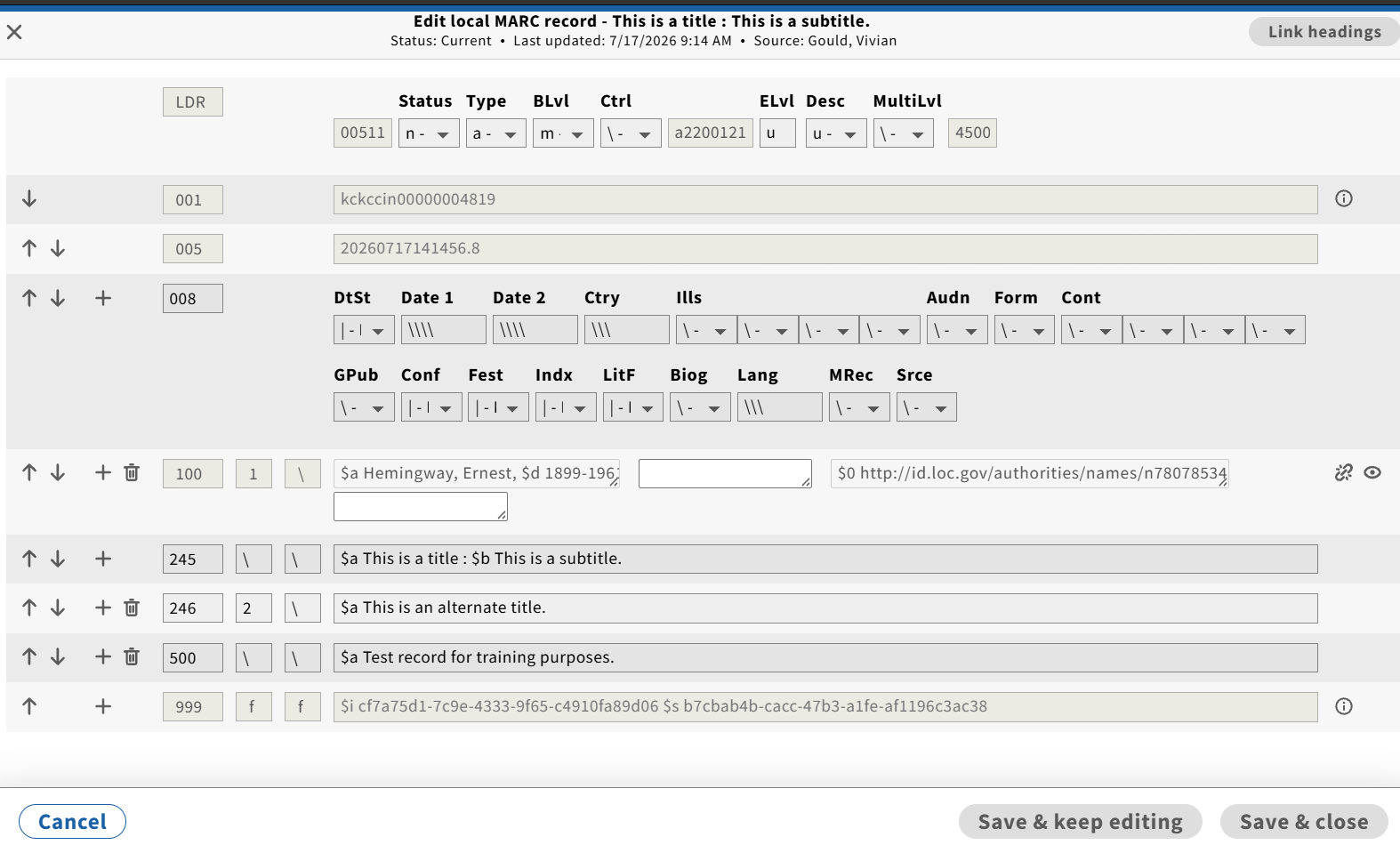
To create a new variable-length field, click on the plus sign (+) to the left of one of the existing lines in the editor. The new line will be created directly below that line (lines can be moved, once created).

¶ Entering Data in Variable Length Fields
Enter the 3-digit MARC tag number in the first data field, the MARC tag indicators in the second and third data fields, and the variable-length data in the fourth data field. Consult the MARC Rules for the correct tags, indicators, and formats of the variable-length data.
Note that the indicator fields use the backslash character (\) to denote blanks.
¶ Subfields
Variable-length field data is entered using subfields. The delimiter character for the subfield is the dollar sign ($). Note that subfields are set off from field data by “space” characters directly preceding and following the delimiter/subfield character pair.

¶ Moving Variable-Length Fields within the Editor
Click on the up-arrow to the left of the variable-length field to move the field up a row.


Click on the down-arrow to the left of the variable-length field to move the field down a row.


¶ Deleting Variable-Length Fields
To remove a variable-length field, click on the “trash can” icon to the left of the field.

Note that the icon does not appear next to the 245 (title) field, as the 245 is a required field and cannot be deleted.
¶ Required Fields
The Leader (LDR), 008, 245, and 999 fields are required fields. There is no option to remove these fields. In addition, the record cannot be saved if the 245 field contains no data.
¶ Linking Variable-Length Fields to Authority Records
Linking variable-length fields to authority records in FOLIO allows for automatic updates of the variable-length fields in the SRS record. If the Main Entry of the authority record changes, either from a manual edit or a Data Import overlay, headings that are linked to the authority record will automatically be updated.
The “link” icon to the right of some variable-length fields allows you to link these fields to authority records in FOLIO. Clicking on the “link” icon will cause an authority search modal to appear.

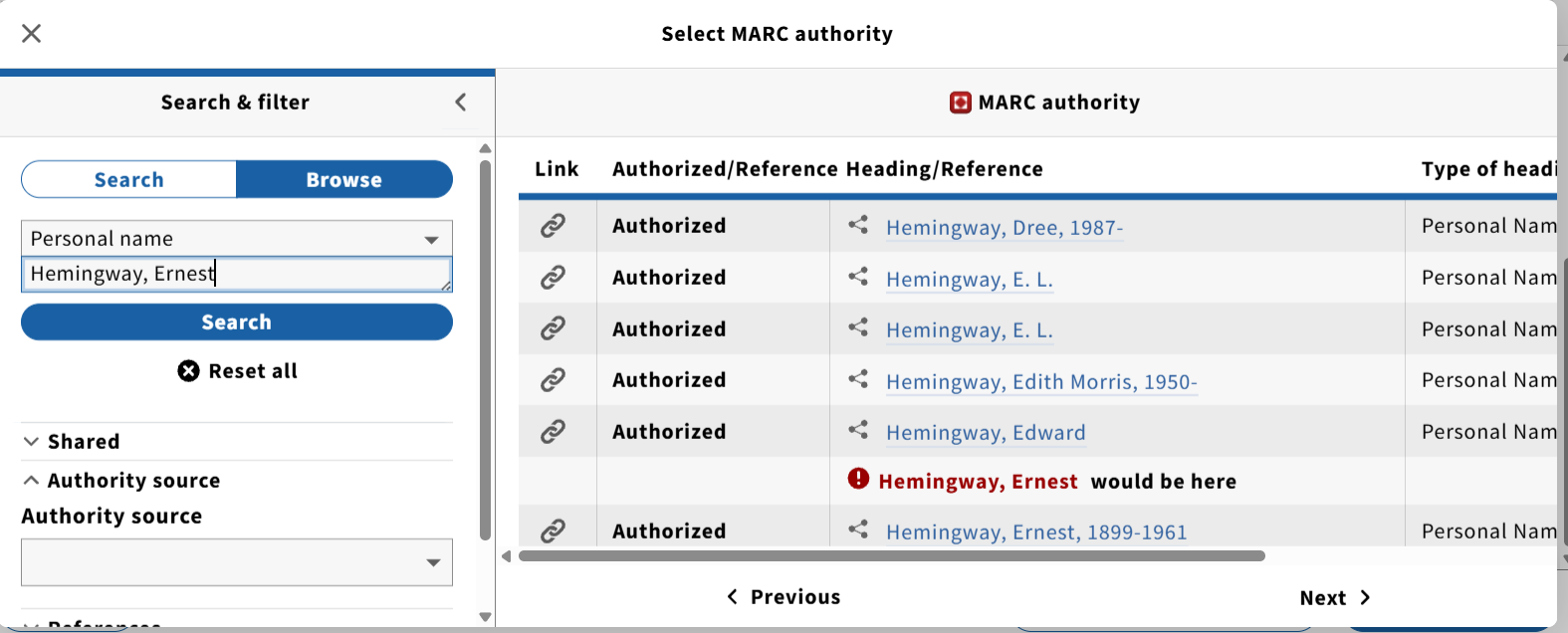
The heading as it appears in the variable-length field being linked from will automatically be passed through as a search in the authority search modal. If no authority record matching that heading is found, the search modal may be used to find the correct authority record.
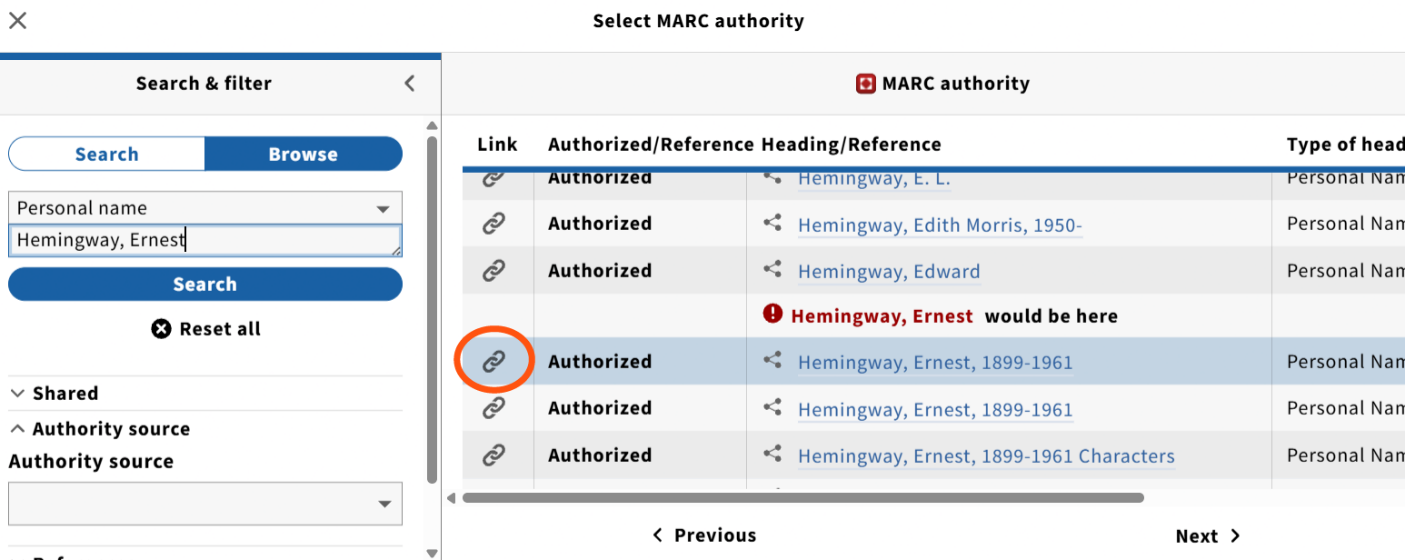
Authority records may be linked via the browse screen in the authority search modal by clicking on the “link” icon to the left of the authority heading in the browse screen.
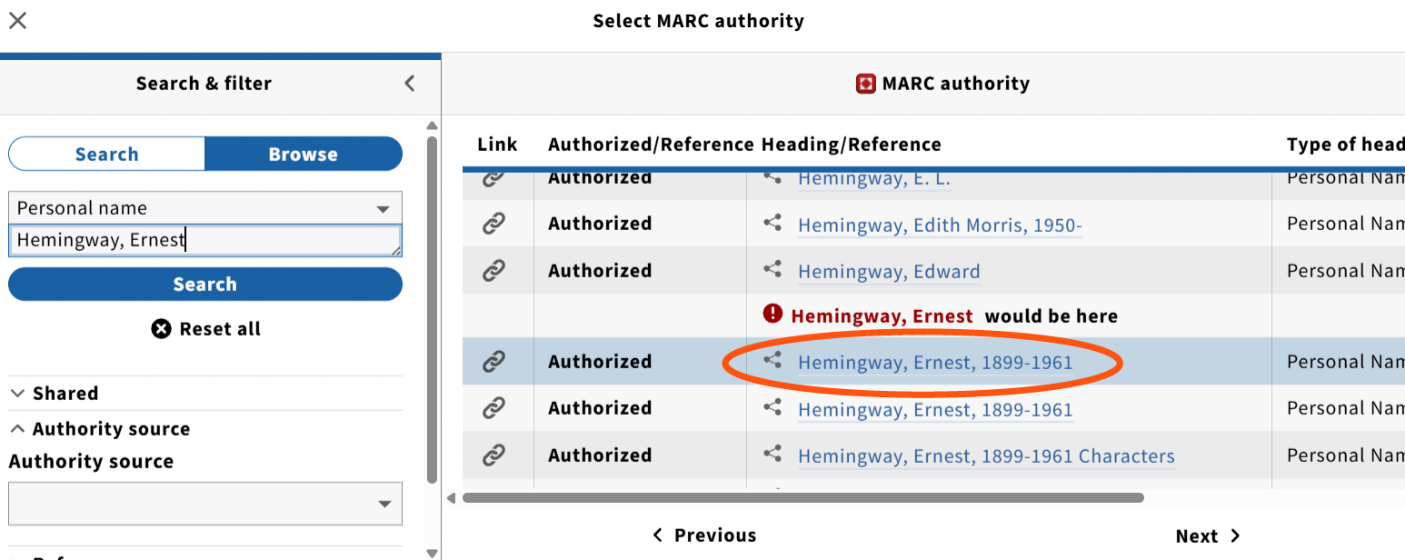
Alternately, authority records may be viewed in the search modal by clicking on the heading in the modal.
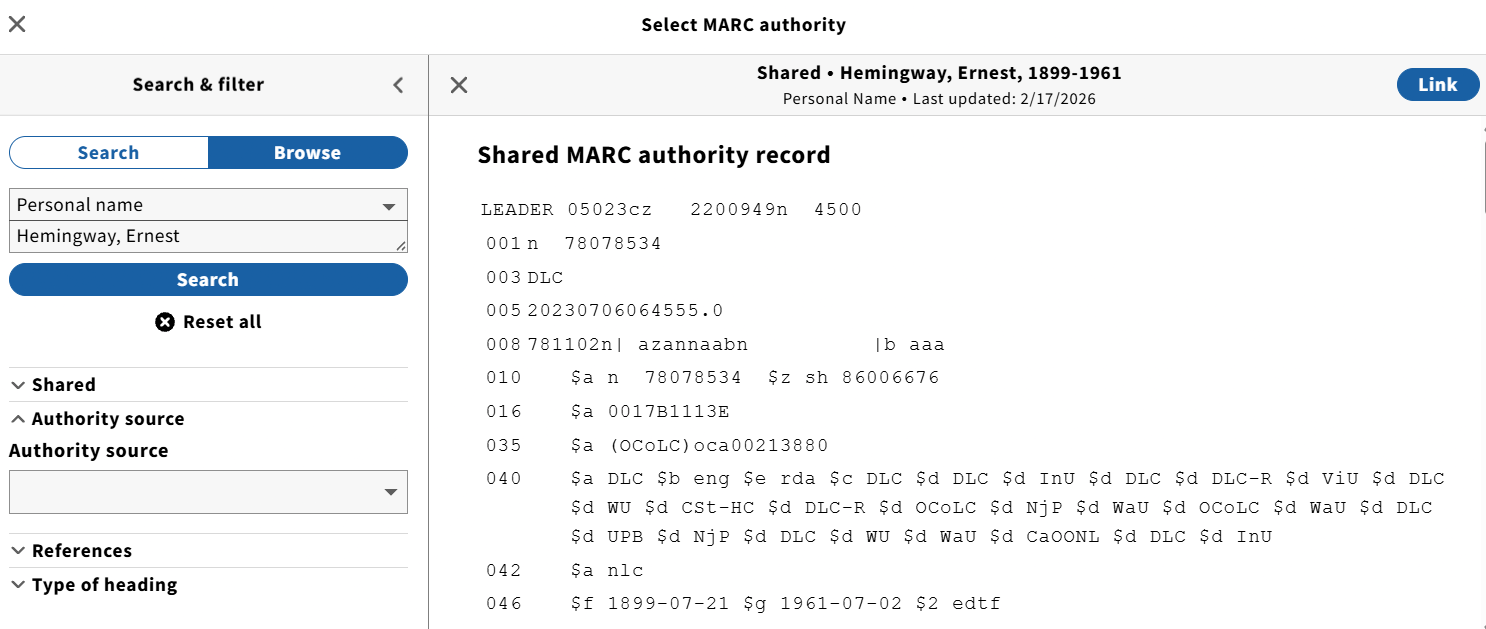
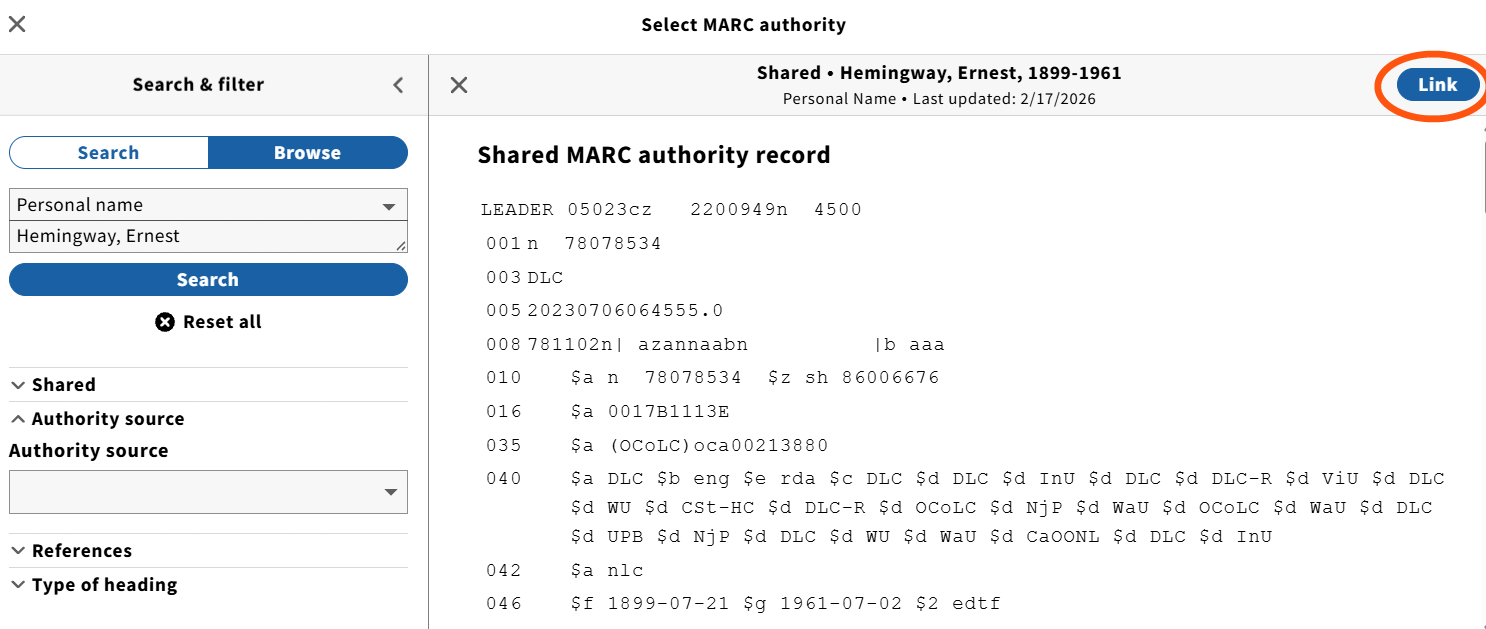
The authority record may be linked from the view mode by clicking on the Link button in the upper right hand corner of the display.
When an authority record has been linked to an SRS MARC variable-length field,
- The variable-length field becomes uneditable;
- A subfield zero (
$0) is added to the variable-length field, containing a URI for the authority record at Library of Congress; - The “Link” icon changes to an “Unlink” icon, which can be used to unlink the variable-length field from the authority record;
- An “Eye” icon appears, which, when clicked, takes the user to the authority record in the MARC Authority app on a new browser tab.

¶ Saving the SRS MARC Record
To save the record without exiting quickMarc, click on the “Save & keep editing” button in the lower right-hand corner of the window.

To save the record and exit quickMarc, click on the “Save & close” button in the lower right-hand corner of the window.

When a new record is saved, the following things will occur:
- The SRS record will be created, along with an Instance record in your Local tenant (Shared records can only be created directly from within the central tenant);
- A Local HRID number will be generated and populated in the 001 field;
- The 005 field will be populated with the date/timestamp for the moment when the record was created;
- A 999 field will be created and populated with the Instance UUID number in a subfield i (
$i) and the SRS record UUID number in a subfield s ($s).
¶ Exiting quickMarc
If the record has been saved, but not closed, and there are no additional changes to be saves, click on the X in the upper right-hand corner of the screen to exit quickMarc.

The user will exit to the Inventory app, which will display the Instance record for the newly created SRS MARC record.