¶ Fiscal Year Rollover
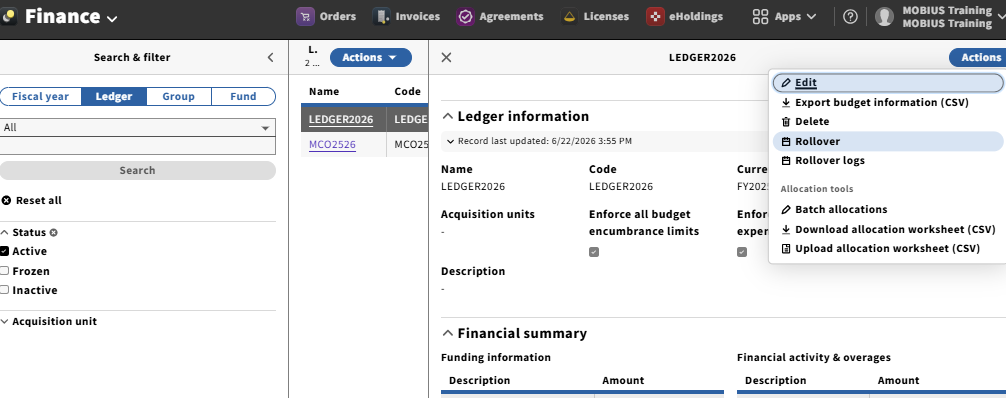
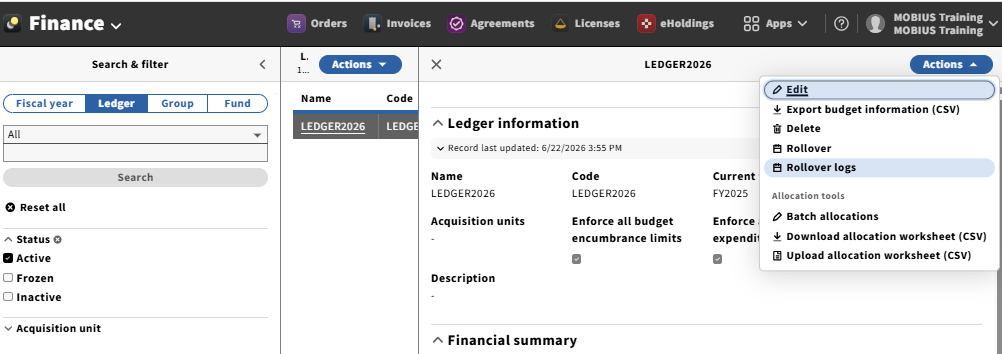
Fiscal Year Rollover takes place at the Ledger level. Each ledger needs to be rolled over separately. Use the filters to find the ledgers to rollover. Select the first one and go to Actions > Rollover.
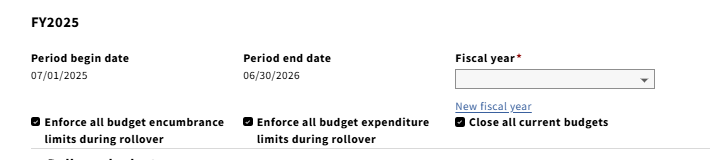
The system will show the current fiscal year begin and end dates. You will need to select the new fiscal year that the ledger will be associated with. You can create a new fiscal year from within the Rollover screen by selecting “New fiscal year” or select the new fiscal year from the dropdown if it’s already created.
Options:
- Enforce all budget encumbrance limits (checked by default)
- Enforce all budget expenditures (checked by default)
- Close all current budgets (checked by default)
If “Enforce all budget encumbrance limits” and “Enforce all budget expenditures” are unchecked, there will be no restrictions on the amount that will rollover and you can spend without a set budget.
If you uncheck “Close all current budgets”, you can make transactions against the previous fiscal year even after completing the rollover.
Rollover budgets
If you use Fund Types, they can be rolled over with different settings.
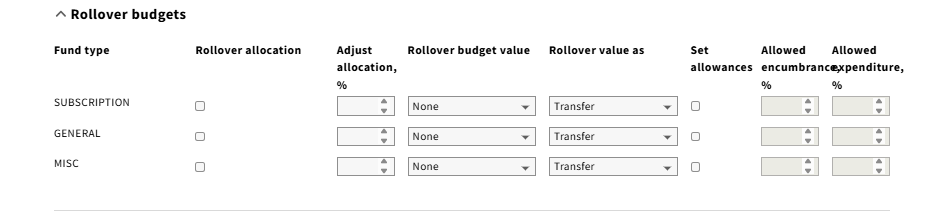
Rollover allocation checkbox: upcoming fiscal year budget will have an initial allocation equal to the current allocation amount.
Adjust allocation %: alter the new budget allocation by a percentage (for example, -2)
Rollover budget value: select which value from the current budget you would like to use as the upcoming budget allocation (available or cash balance)
Rollover value as: transfer or allocation
Set allowances checkbox: use to limit encumbrance and expenditure limits on the budget
Allowed encumbrances/expenditures %: enter the percentage. Leave blank for no limits. Entering 100 will limit the allowed amounts to only what was allocated. Entering 0 will prevent encumbering and expending.
Rollover encumbrances
You can rollover encumbrances separately based on order type. Order types include ongoing and one-time.
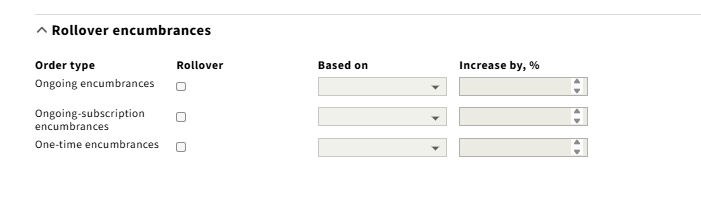
Based on: select expended, initial encumbrance, or remaining:
- Expended: encumbers the total amount that was expended during the current fiscal year
- Initial encumbrance: encumbers the purchase order line estimated price
- Remaining: encumbers the amount that has not yet been paid.
Increase by %: enter a value or leave blank if you do not want to adjust the encumbrance.
TEST Rollover
The system will show any invoices that have not been paid or cancelled. From there you can cancel, export the list of open invoices, or continue.
Test results should be sent to the email address in your login.
RUN
…the rollover (for real) if the test is okay.
VIEW Results
Go to Actions > Rollover Logs
The logs will show the rollover date, status (successful or failed) and you can view the settings and results.
REPEAT for each ledger.