¶ FOLIO Notice Policies
Notice policies in FOLIO serve as a complete communications package for patrons regarding the materials they have checked out.
Notice policies are located under Apps > Settings > Circulation, followed by Patron notices and Patron notice policies.
Note: OpenRS Notice policies are established by Board policy and should not be edited or updated by individual libraries. Please contact the MOBIUS office for assistance.
¶ Notice Categories
Notice policies consist of three main categories of notices:
- Loan notices: Sent to the borrower regarding items in their possession (e.g., overdue notices).
- Request notices: Sent to the borrower regarding item requests (e.g., pickup notifications).
- Fee/fine notices: Sent when a patron incurs a fine.
Note: Manual fines and the timing for items aging to lost/billed status are handled separately, as detailed in later sections.
¶ Creating a Notice Policy
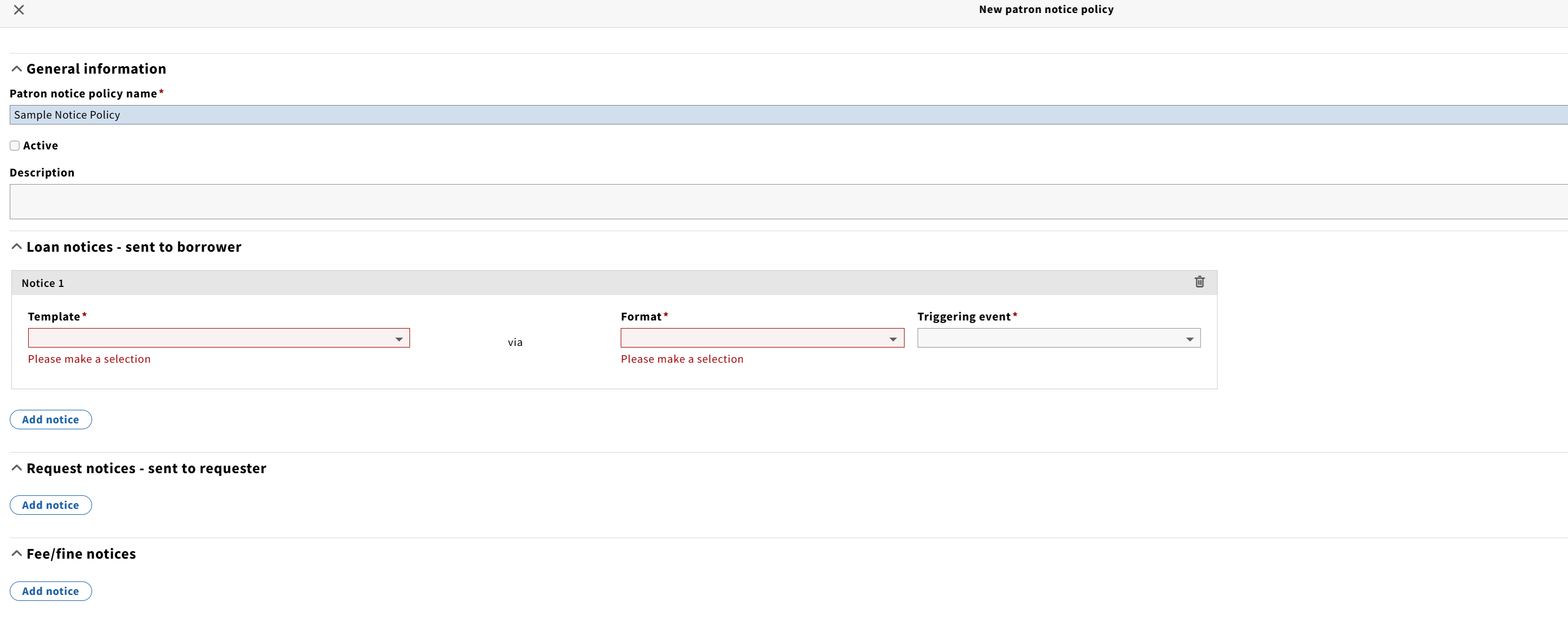
When creating a policy, select the following core parameters:
- Template: The specific template to be used.
- Format: The delivery method.
- Triggering event: The specific action that causes the notice to be sent.
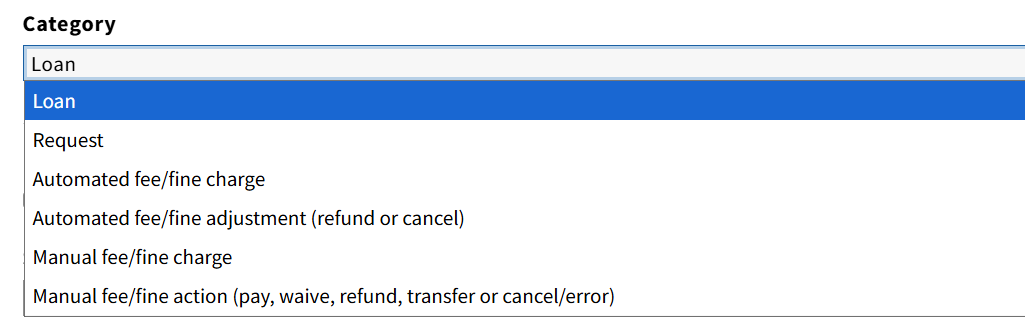
Notice templates appear in the selection list based on their assigned category. Loan, Request, and the two automated Fee/Fine policies are governed by a notice policy.
¶ Format Options
Email: Default delivery format.
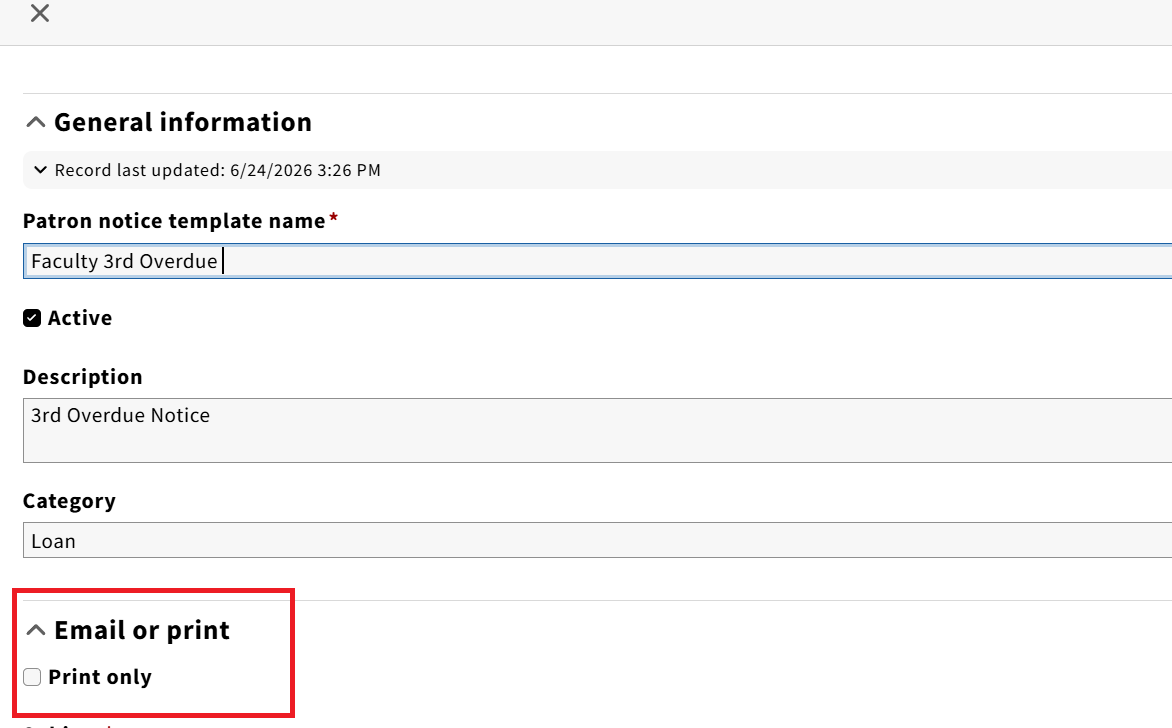
Print: Available for select notices. In the notice template under the Email or print section, select the Print only checkbox (which removes the subject line). Print-enabled notices will display in the Users search results pane. Currently, only Reminder fees can be collected using the nightly print job.
¶ Configuration Parameters
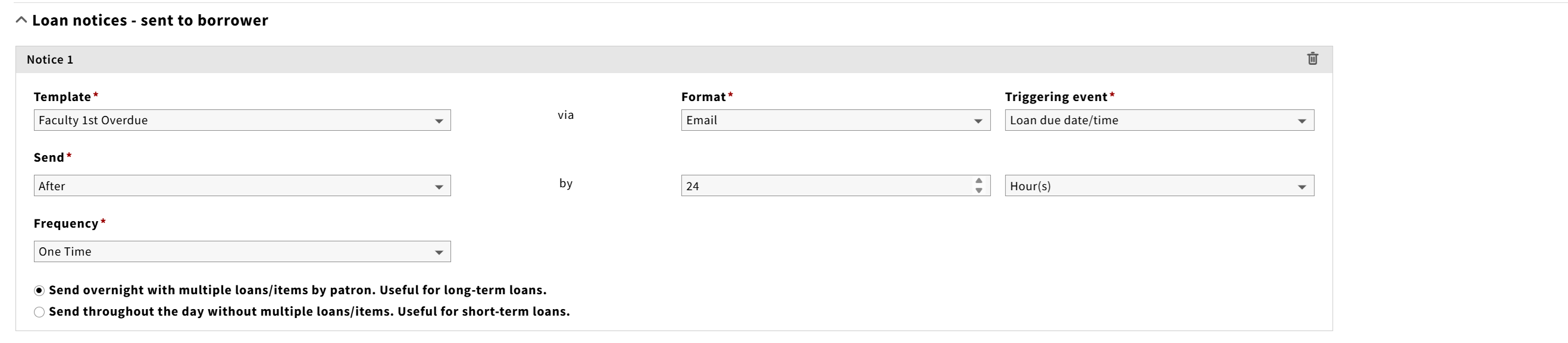
After making an initial entry, additional scheduling options become available:
Delivery Timing:
Overnight notices: Used for long-term loans (a day or longer). Multiple items can be batched into a single notice.
Throughout the day: Used for short-term loans (hourly, such as reserve items). Sends one notice per item.
Frequency: Sets a notice to recur on a schedule. Recurrent notices will continue until the next step in the loan lifecycle occurs (e.g., when the item is returned).
The table below shows the options for Loan notices:
| Send | Time | Triggering Event |
| Upon/At | Minutes | Check in |
| Before | Hours | Check out |
| After | Weeks | Item renewed |
| Months | Loan Due date/time | |
| Years | Loan Due Date Change | |
| Item recalled | ||
| Item aged to lost |
While not specifically named, the options make several types of notices possible. Some examples are:
- Sent before due date: Courtesy notice
- Sent after due date: Overdue notice
- Sent after check out: Check out confirmation
- Sent when item renewed: Renewal confirmation
The table below shows the options for Request notices:
| Send | Triggering event |
| Always immediately | Awaiting Pickup |
| Page Request | |
| Hold Request | |
| Recall Request | |
| Cancel request | |
| Hold shelf expiration | |
| Request expiration |
Note: Request notices are sent immediately; custom time offsets are not supported.
Common Examples:
- Sent on Page Request: Confirms a page request has been placed for processing.
- Sent on Hold Request: Confirms a hold has been placed for an unavailable item.
- Sent on Awaiting Pickup: Alerts the patron that the item is on the hold shelf and ready for pickup.
- Sent on Hold shelf expiration: Alerts the patron that the hold shelf window has expired and the item will be returned or processed.
Lastly are fee/fine options:
| Send | Time | Triggering Event |
| Upon/At | Minutes | Overdue fine, returned |
| After | Hours | Overdue fine, renewed |
| Weeks | Lost item fee(s) charged | |
| Months | Lost item returned - fee(s) adjusted | |
| Years |
¶ Manual Fines and Billing
¶ Manual Fines
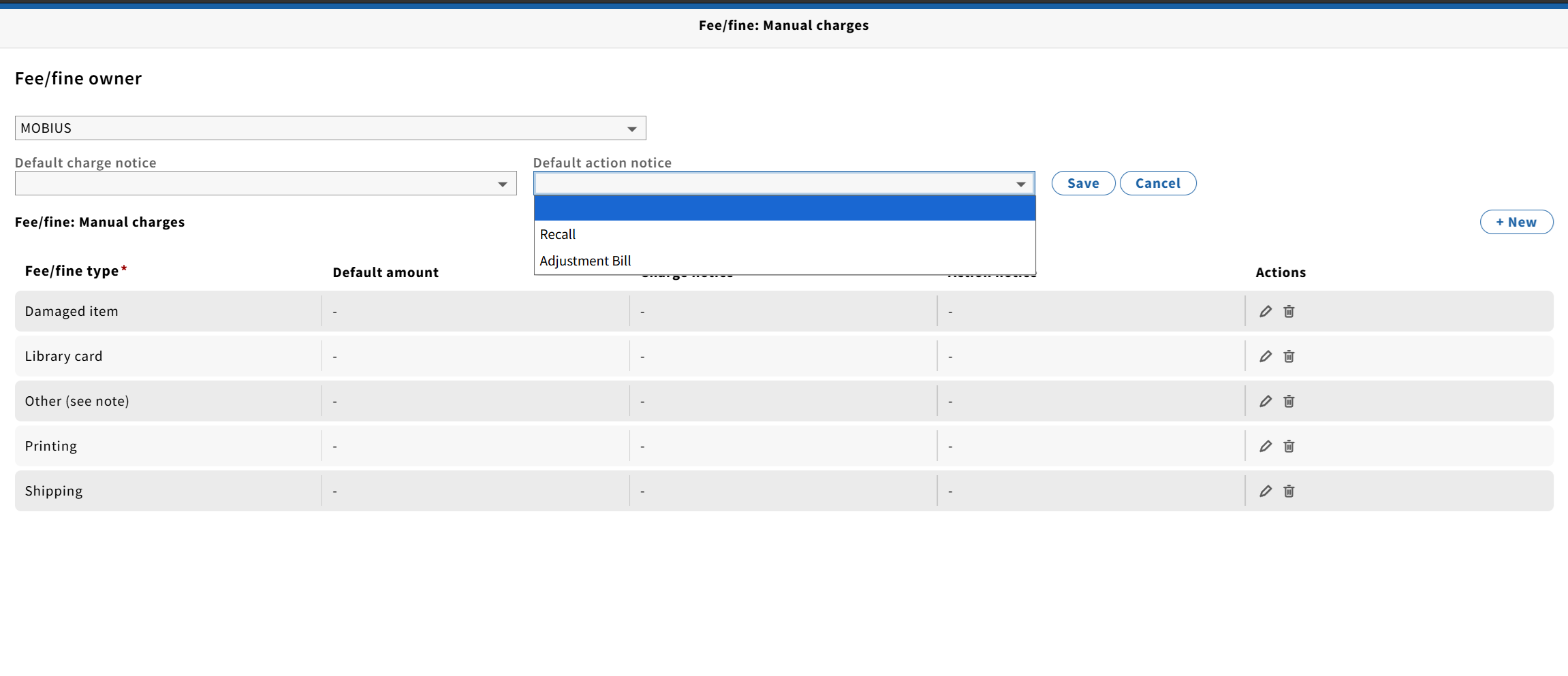
Manual fines are configured using their own templates under Apps > Settings > Users > Fee/fine > Manual charges. These rely on templates assigned to manual fine categories, do not use a circulation notice policy, and are sent immediately upon generation.
¶ Billing
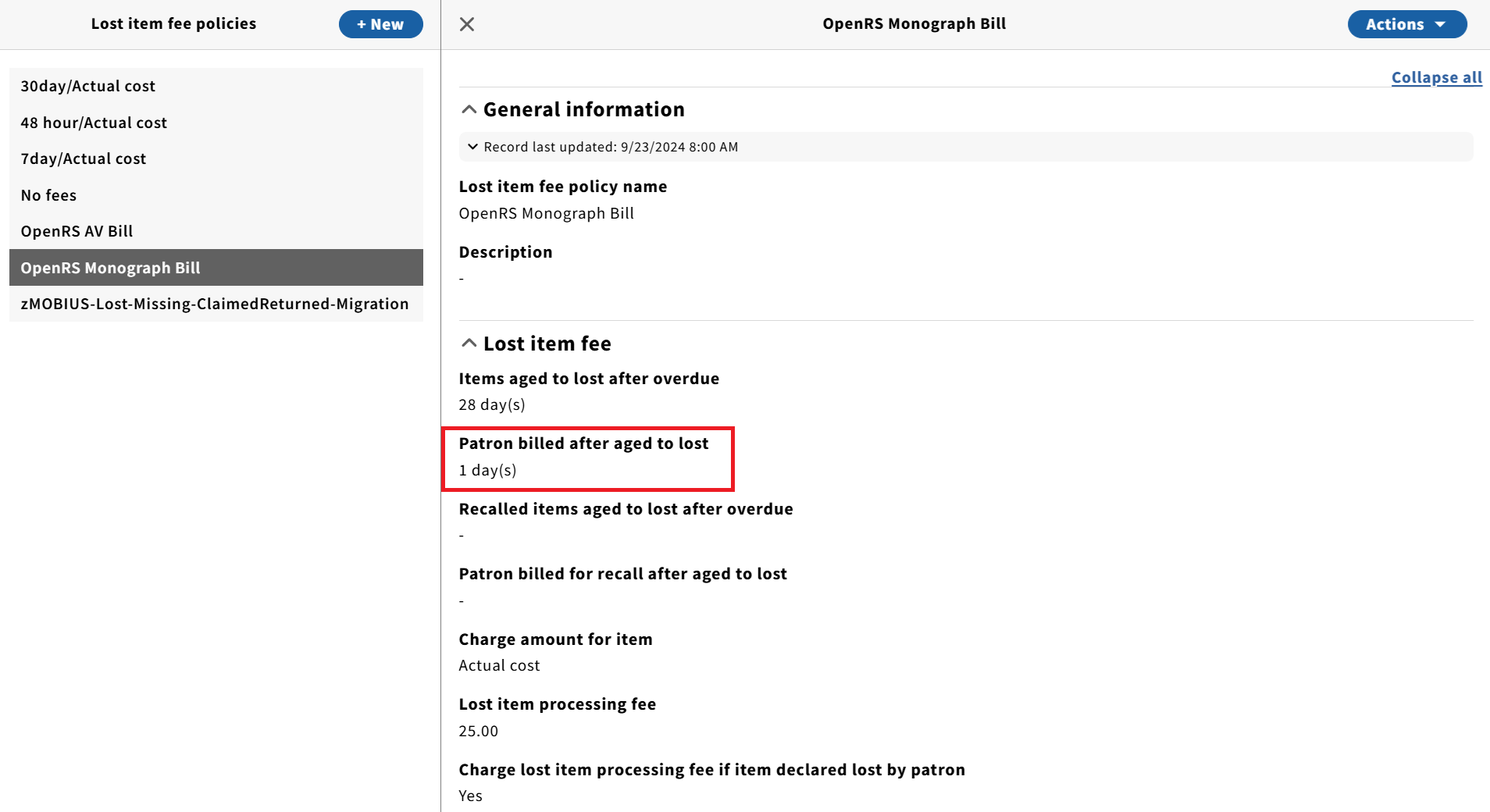
Bills are generated based on the Lost Item Fee Policy. While the timing for aging an item to lost and generating the associated bill is defined by the Lost Item Fee Policy, the underlying communication templates are managed within the Notice Policy
¶ Best Practices & Tips
- Naming Conventions: Name policies descriptively so their function is clear within the Loan Rule Editor (e.g.,
7-7 2 day courtesyfor two overdue notices sent 7 days apart, following a courtesy notice sent 2 days before the due date). Libraries are free to adapt their preferred naming convention. - Loan Rules Integration: A notice policy does not function on its own; it must be mapped within Loan Rules to take effect.
- Policy Limit: Only one notice policy can be assigned per loan rule.
- Patron Segmentation: Multiple policies can be configured within loan rules to deliver customized messaging to different patron groups (e.g., Faculty vs. Students).